Discover how to manage Dell PC peripherals and displays with Dell Display and Peripheral Manager (DDPM) and Dell Device Management Console (DDMC). Learn to configure, update, and manage devices using both the cloud console and CLI, optimizing productivity and saving time for IT administrators. For more information on Dell Display and Peripheral Manager, visit Dell.com/Support/ddpm, and for DDMC, visit device.manage.dell.com (login required).
Welcome to this tutorial on managing Dell displays and peripherals with Dell’s device management solutions. With these tools, IT admins can remotely configure, update, and monitor devices using either a cloud console or CLI, streamlining IT operations and boosting productivity.
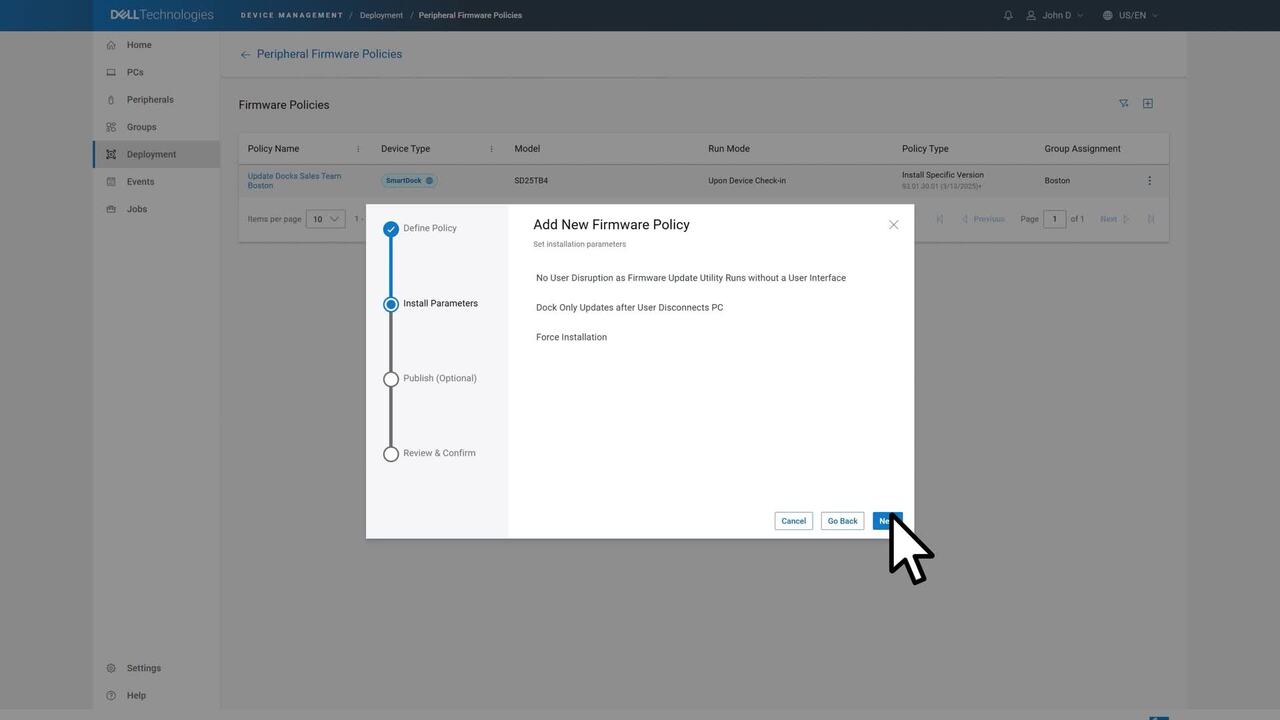
First, let’s explore remote management using the cloud console. Dell Device Management Console or DDMC helps to manage, configure, deploy and update a fleet of devices from a single cloud-based console. Setting up DDMC is simple. IT admins can access DDMC via Dell Management Portal, which is available through Microsoft Intune. From there, you can navigate to the DDMC Dashboard without requiring additional authentication from Microsoft.
DDMC supports access via Microsoft Entra ID. Single Sign-On can be enabled for your organization as well. Alternatively, users can access DDMC directly at: Device.Manage.Dell.com using their Dell ID. As part of the initial setup, the admin must create a company profile.
Once logged in, install Dell Display and Peripheral Manager (DDPM) and Dell Management Agent (DMA) on host PCs to enable peripheral monitoring, deploy firmware updates, configure devices, and track inventory. Devices registered in DDMC, such as docks, displays, headsets, webcams, mice, keyboards, and active pens, can then be managed centrally. To streamline management, devices can be organized into groups in DDMC. For example, an IT admin can create a group for all PCs within a specific department or office location. This makes it easy to apply customized firmware updates and configuration settings to all devices connected to those PCs.
DDMC also supports custom policy management, allowing IT teams to enforce company-wide settings for displays and peripherals, deploy updates, and ensure a consistent user experience across devices. For IT teams that prefer scripting, the Command Line Interface provides a powerful remote management alternative. Mac users can also use CLI scripts for managing displays. With CLI commands, admins can perform mass installations, configure settings, retrieve firmware versions, deploy updates remotely, adjust telemetry consent, and generate asset inventory reports for improved tracking and compliance.
CLI can also be used to install DDPM in headless mode. With Dell’s device management solutions, IT admins can streamline device management, enhancing their efficiency. For more information on Dell Display and Peripheral Manager, visit: Dell.com/Support/DDPM and for DDMC, visit: Device.Manage.Dell.com.